Nowadays, you only need two things to play an electric guitar: a Linux computer and a sound card. Everything else, including amplifier simulation and sound production, can rely entirely on open source software.
Ubuntu 24.04 and newer use PipeWire as the default audio server. Before that, you usually had to use PulseAudio for standard desktop sound and JACK for music production and playing. Integrating the two was unreliable and not straightforward.
Many established Linux music applications support only JACK, but PipeWire has a trick. By using pipewire-jack, you can make any JACK-compatible application use PipeWire. This makes PipeWire a convenient solution for playing music on an Ubuntu computer without adding complexity or disrupting the rest of your audio setup.
The pipewire-jack trick
Installing pipewire-jack creates this directory: /usr/lib/x86_64-linux-gnu/pipewire-*/jack/. It contains libraries that implement the JACK interface but connect applications to PipeWire instead.
This allows JACK-compatible software to work seamlessly with PipeWire.
While you can launch JACK-compatible software with pw-jack MY_APP, you can also configure the runtime linker so that this happens automatically.
This is the approach I prefer, but note that it will prevent JACK-compatible software from working with jackd.
Once you have installed pipewire-jack, make sure to add your user to the audio group, then run:
sudo cp /usr/share/doc/pipewire/examples/ld.so.conf.d/pipewire-jack-*.conf /etc/ld.so.conf.d/
sudo ldconfig
This way, the pipewire-jack JACK libraries will be loaded at runtime by any application.
For example, you can install Carla, a JACK application, and immediately see your patchbay: 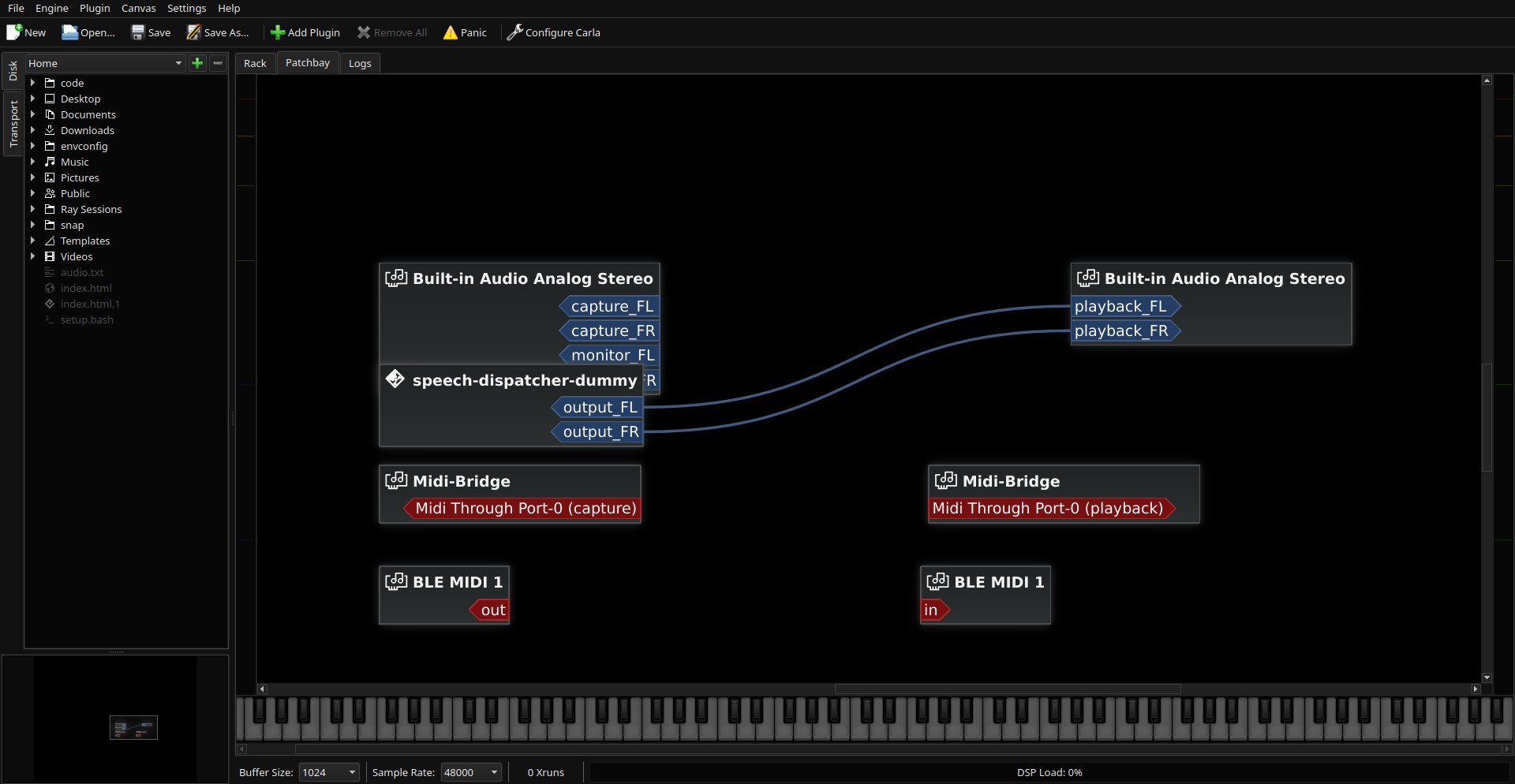
Playing the guitar
Plug in your Linux-compatible sound card. I use a Volt 276, but many entry-level sound cards support Linux. The audio output also has to happen from the sound card so connect speakers or a wired headphone to the soundcard.
Now that PipeWire is ready, we can install the software we want. Guitarix is a very good starting point. It has many amplifiers and effects, as well as sound banks shared by the community.
Before running Guitarix, however, we can get started with RaySession.
RaySession
RaySession can be used for many things: configuring PipeWire’s buffer size, setting up the patchbay, and even saving and restoring applications and their routing.
Start by installing RaySession and Guitarix with apt. Then launch RaySession and create a guitar session.
Add a new application to your session and select Guitarix.
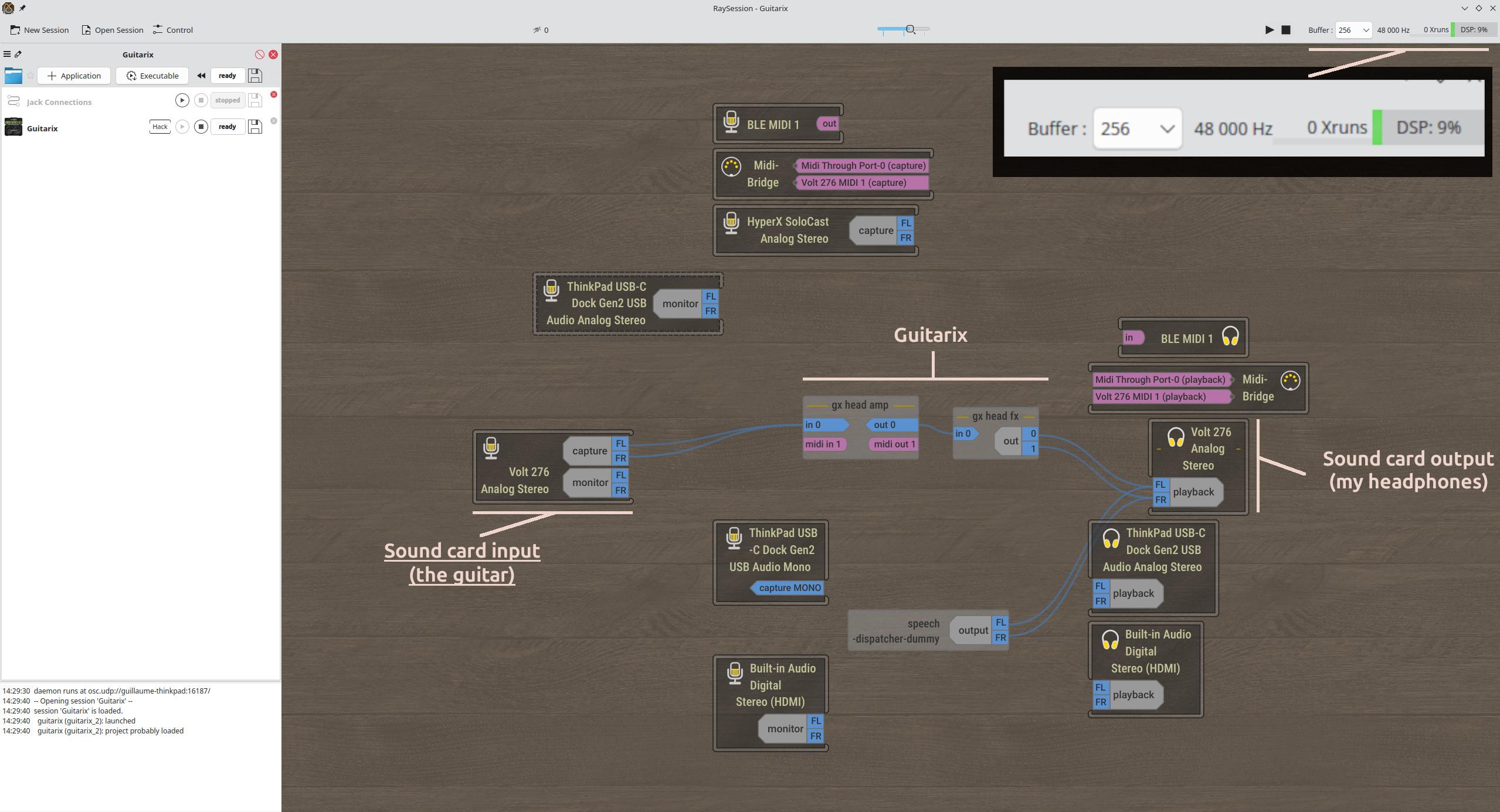
In the patchbay, connect your sound card’s input to Guitarix, then connect Guitarix’s output to your sound card’s output.
In the top-right corner of RaySession, you can select the buffer size. This controls how much audio PipeWire keeps in its buffer. For a given sample rate, a larger buffer increases latency. You want low latency so that you do not hear a note long after playing it. Keep in mind that the buffer size and sample rate should be adjusted according to your CPU’s performance. The number of xruns indicates how many times your CPU could not process a buffer in time and had to drop it. When this happens, you will generally hear a crackle or the sound may stop briefly. On most of my computers, I can achieve approximately 5 ms latency with a 48 kHz sample rate and a buffer size of 256 samples.
Guitarix
Now that everything is ready, we can start playing guitar and experimenting with Guitarix. I found that the community sound banks were not ideal for me: their volume levels varied considerably, and they were not well suited to my instrument.
I recommend starting with the cleanest sound you can get and adding effects from there.
My recommendations are:
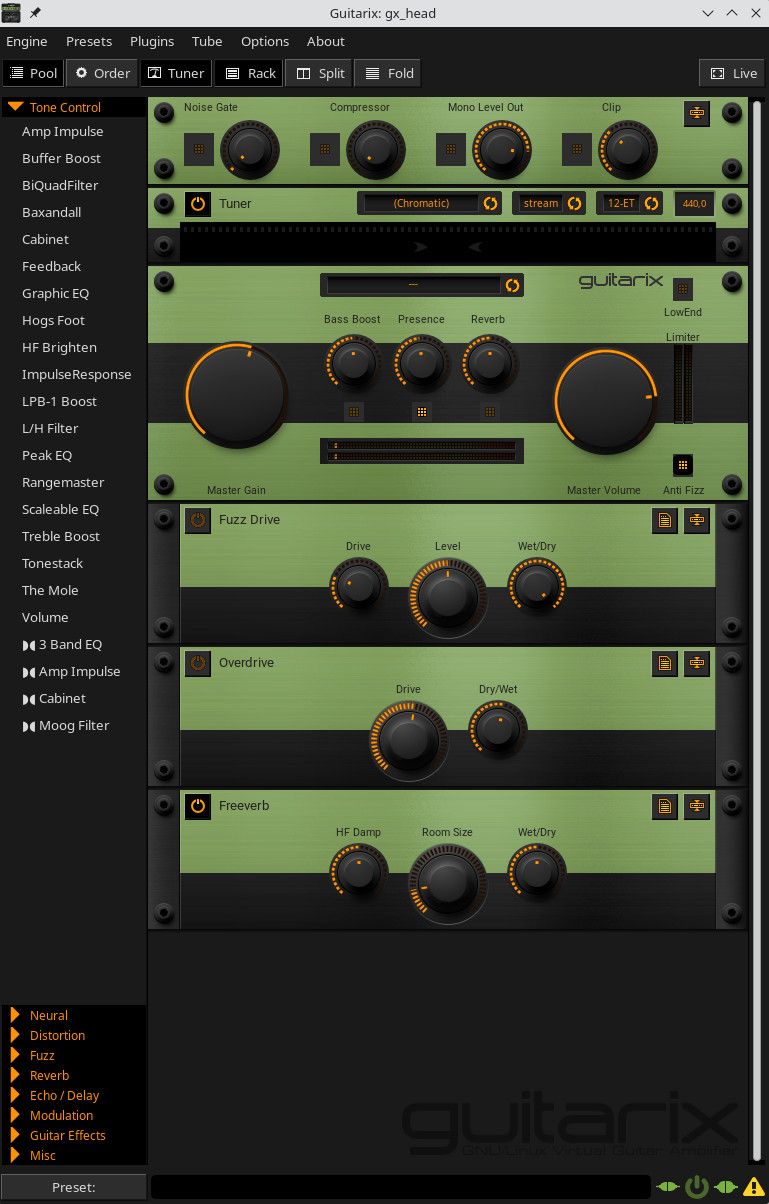
- Add the guitar tuner
- Adjust the noise gate
- Select the “—” amplifier
- Configure the gain and master volume of the amplifier
From here, you can save your own bank and then add effects such as reverb, overdrive, and chorus. This is a great way to discover how to shape your own sound.
Bonus: Ardour and music production
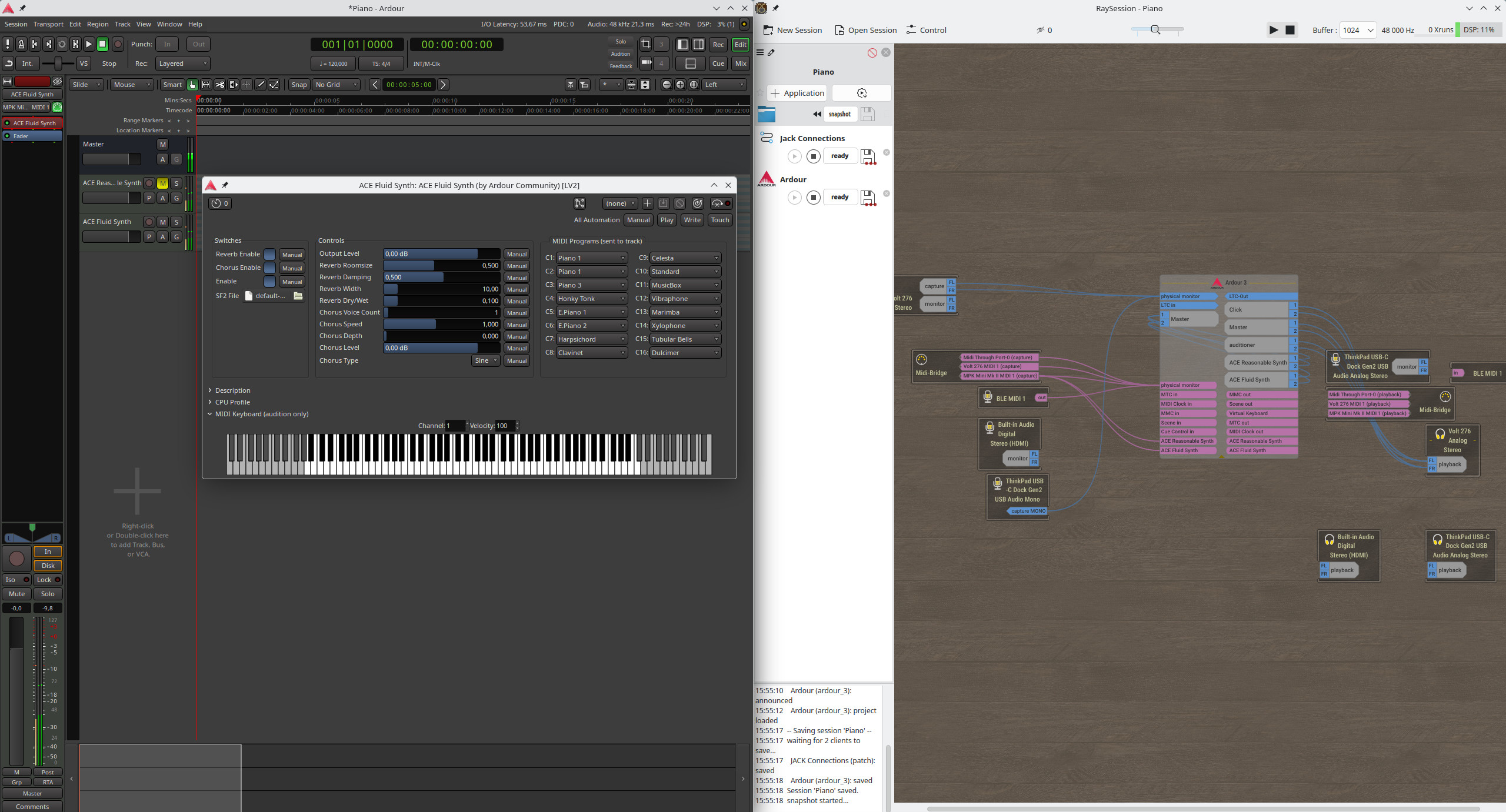
After playing guitar live on your computer, you may want to go further with Ardour. You can create a new RaySession session, connect a MIDI keyboard, and start recording or editing your own music. For playing a keyboard (a small Akai Mini, in my case), I found Ardour to be the best solution.
The Ubuntu repository contains many LV2 and VST plug-ins. You can find some of them with:
apt list | grep lv2
The Ardour documentation provides examples of plug-ins you can use as a starting point.
When using Guitarix and Ardour, you can either load individual Guitarix plug-ins within an Ardour track or keep Guitarix as a standalone application and route its output into Ardour from your patchbay, which is my preferred approach.